
Copy Keyframes from Several After Effects Layers
You select keyframes on several layers, copy, and paste. After Effects pastes whole layers. There is no…
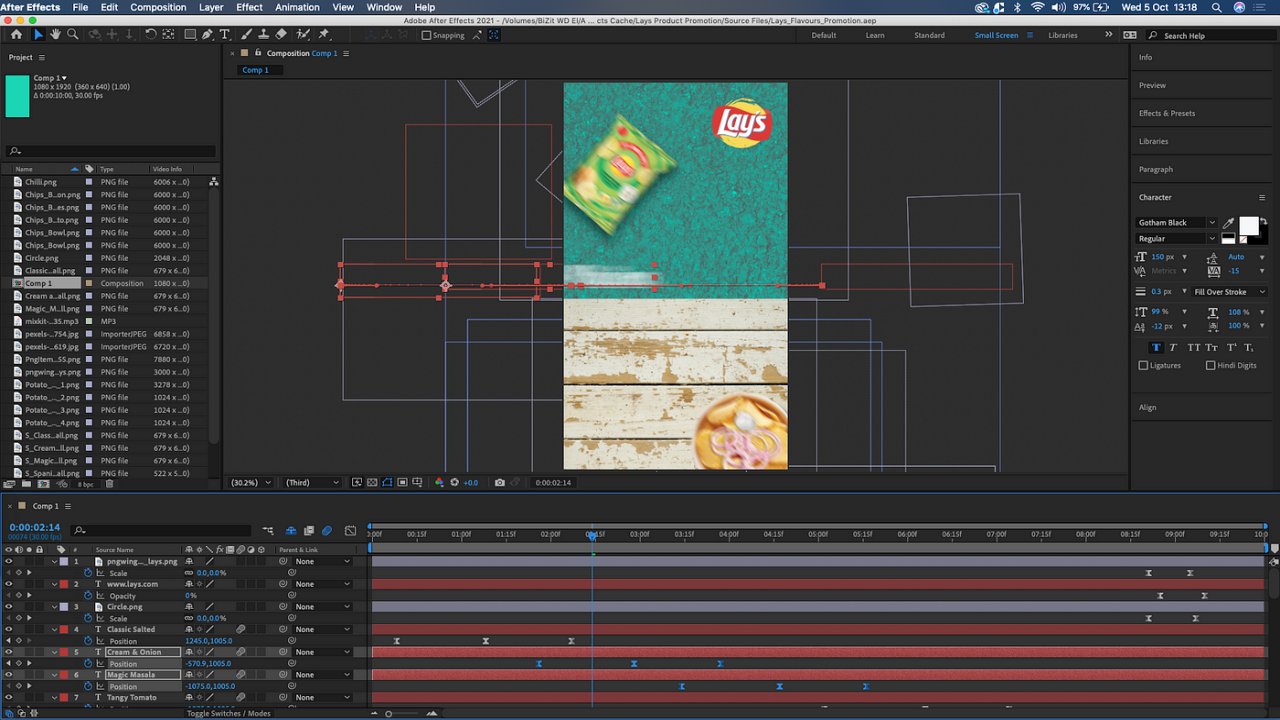
You select keyframes on several layers, copy, and paste. After Effects pastes whole layers. There is no built-in command that lifts only the keyframes off many layers and drops them on other layers in one step. You do it layer by layer, and you have to select the keys rather than the layer.
Select the keys, not the layer
Press U on the selected layers. That reveals every property that has keyframes, which is the view you want. Click the keyframes in the timeline graph, not the layer name and not the property name. A selection that includes the layer header is a layer copy. A selection that is only the diamond keyframes is a keyframe copy.
Copy, move the playhead to the destination time, select the matching property on the destination layer, and paste. The keys land at the playhead. Repeat per layer. It is slower than one shortcut. It does not duplicate your layers or your masks.
Move them on the same layer
If the keys are staying on the same layers and you only need them later in time, do not copy at all. Select the keyframes and drag them, or hold Alt on Windows, Option on a Mac, and drag to duplicate them along the same property. That keeps the curves and avoids the paste-a-layer trap.
Scripts exist that copy keys across many layers at once. They are optional. The built-in way is U, then one layer at a time, with the layer name left unselected.
